


To pass the Core Web Vitals test, your ecommerce store needs to deliver a fast, responsive experience for at least 75% of visitors. Google measures it using real-world data from Chrome users over the past 28 days.
These metrics include:
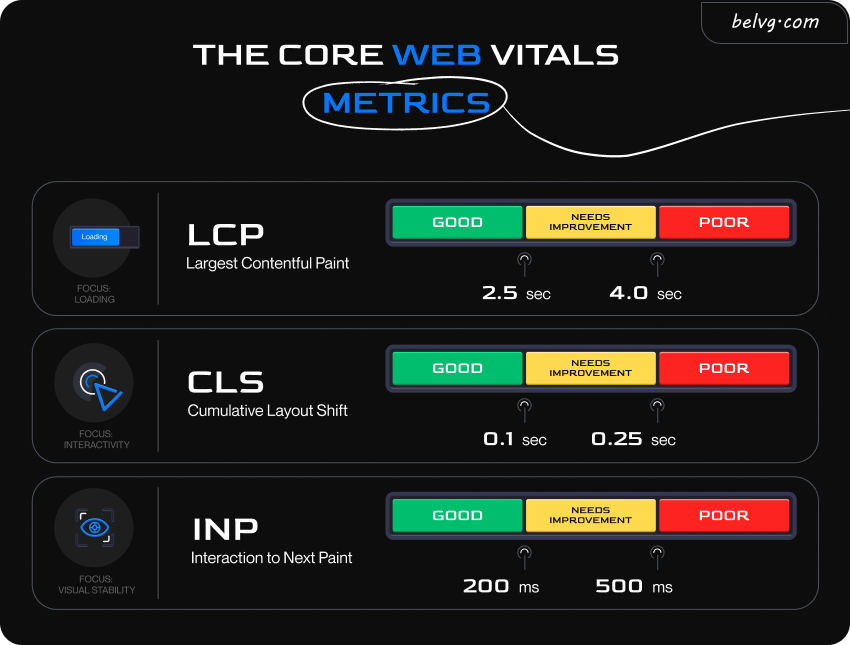
- LCP, or loading speed, under 2.5 seconds
- INP, or responsiveness, under 200 milliseconds
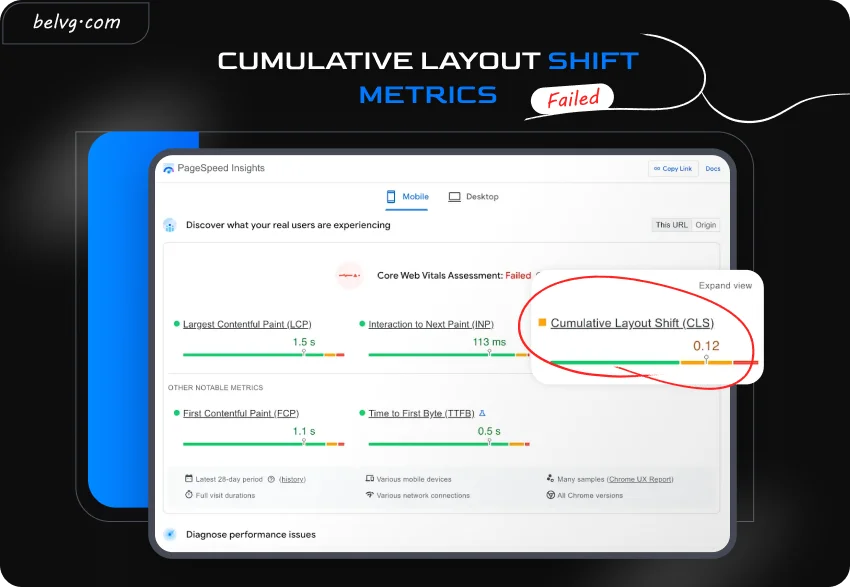
- CLS, or visual stability, under 0.1
Sites fail the assessment when even one metric falls outside the “good” range. This failure often signals underlying technical issues that frustrate users and lower search rankings.
This guide explains why Core Web Vitals matter for ecommerce store performance and conversion, how to diagnose performance issues, and how to fix LCP, INP, and CLS step by step.
Table of Contents:
Understanding Core Web Vitals
How Google Measures Core Web Vitals Scores
Why Lab Tests and Field Tests Differ
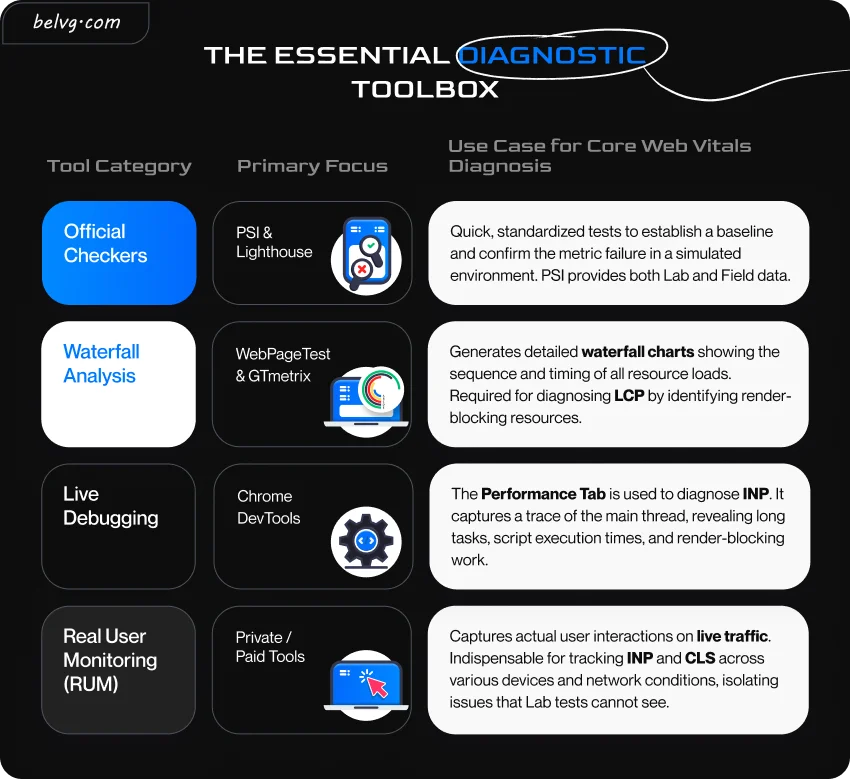
How to Diagnose a Core Web Vitals Failure
Common Causes of Core Web Vitals Failure
How to Prioritize Fixes
Step-by-Step Fixes for Core Web Vitals Metrics
Platform-Specific Optimization for Ecommerce
How to Pass Core Web Vitals Assessment Tips
Case Study: How BelVG Improved Core Web Vitals
Conclusion and Next Steps
Get a Core Web Vitals Audit
BelVG audits your store, identifies the failing metrics, and fixes them.
Get Audit
Understanding Core Web Vitals
Since 2021, Core Web Vitals have helped determine how Google ranks pages in search results.
Google evaluates three Core Web Vitals:
- Largest Contentful Paint (LCP). This Core Web Vital shows how quickly the main content, such as a hero image, loads. If it loads slowly, users may think the page is broken.
- Interaction to Next Paint (INP). INP measures how quickly a page responds to users’ clicks, taps, or key presses. The site must react fast.
Cumulative Layout Shift (CLS). How stable the layout stays as things load. No one enjoys chasing buttons that jump around as an ad loads late.
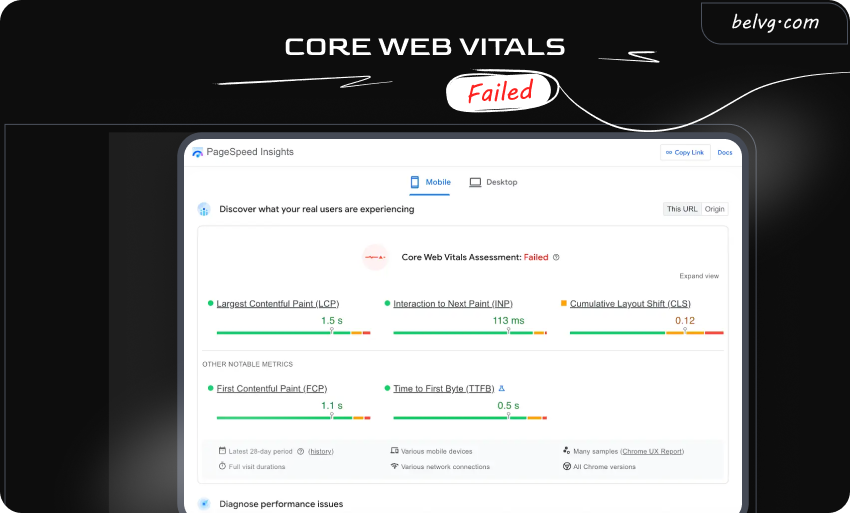
If even one Core Web Vital — LCP, INP, or CLS — falls below recommended thresholds, the site receives a “Core Web Vitals: Failed” status in Search Console. Slow, unstable sites lead to higher bounce rates, fewer conversions, and lower Google search rankings.
Core Web Vitals issues can affect any brand, regardless of popularity or demand. Ray-Ban’s Multi-Page Application setup was associated with slower navigation and CWV failure. After redesigning its product pages, mobile conversions rose 101.47% and desktop conversions 156.16%.
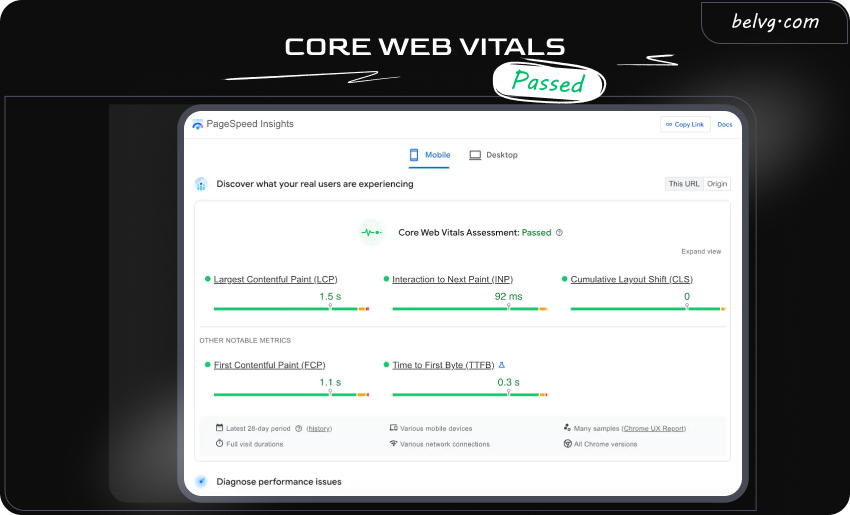
When a page meets the recommended Core Web Vitals thresholds, Search Console marks it as Passed.
How Google Measures Core Web Vitals Scores
Measuring CWV is a dual-system approach. It combines controlled testing with real user data.
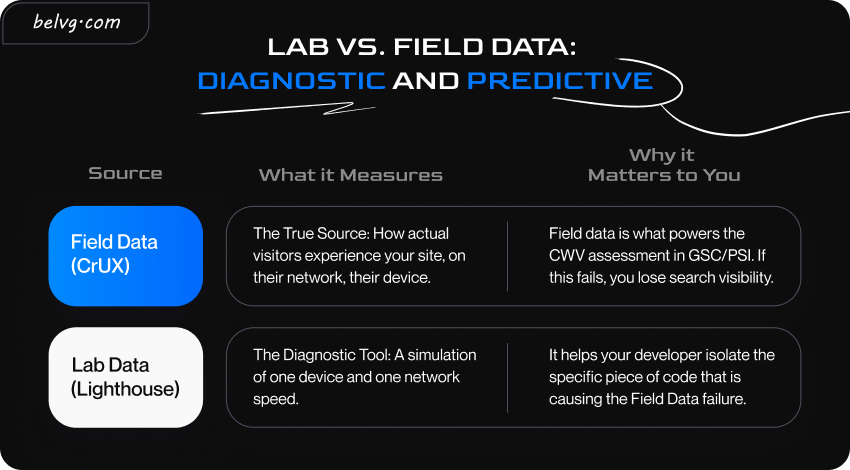
Field Data (CrUX)
Field Data (or Real User Monitoring/RUM) reflects how actual users experience your site under real-world conditions like network speeds, device types, and geographic locations. This data is pulled from the Chrome User Experience Report (CrUX).
Key aspects of Field Data:
- Tools using CrUX. PageSpeed Insights (PSI) and Google Search Console (GSC) pull their data directly from CrUX.
- The 75th percentile. Google evaluates Core Web Vitals using the 75th percentile of real user visits. If the metric exceeds the recommended thresholds at that percentile, the page fails the assessment.
Search Console’s Role. GSC flags web pages as “Good”, “Needs Improvement”, or “Poor” based on 28 days of accumulated CrUX data.
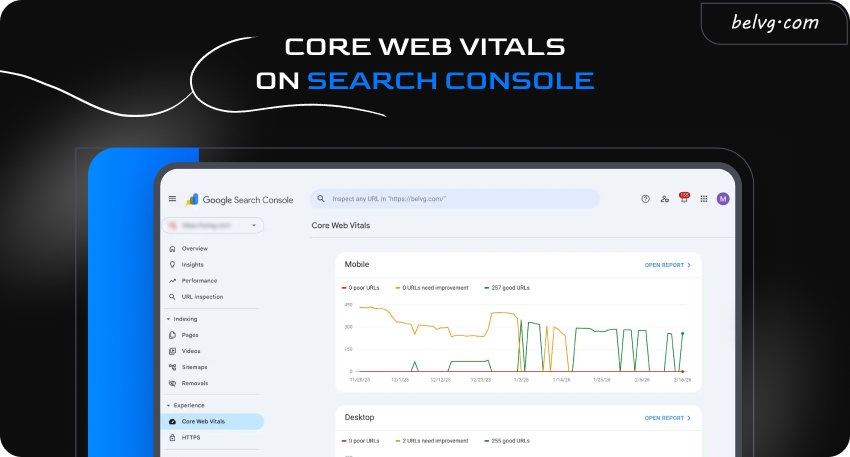
In practice, CrUX data determines whether a page passes or fails the Core Web Vitals test. Since it reflects real user behavior over 28 days and uses the 75th percentile threshold, it provides one of the closest representations of real user experience.
Lab Data (Lighthouse and PSI)
Lab Data helps developers to diagnose web performance issues in a controlled, artificial environment with predefined devices and network conditions. It allows them to test improvements before code release.
Key aspects of Lab Data:
- Tools. Lighthouse, which is integrated into Chrome DevTools and PSI, WebPageTest, and other synthetic monitoring tools.
- Best use case. Lab tests help developers isolate issues and measure the impact of code changes.
- Lab limitations. It uses fixed network speeds and ignores real-world factors like third-party chat widgets or varying device CPUs.
Lab Data is useful for diagnosing problems and testing fixes in a repeatable environment. However, it should be paired with Field Data to understand how real users experience the site.
Why Lab Tests and Field Tests Differ
It is common to see a 90+ score in Lighthouse while failing the Search Console assessment. These discrepancies happen because simulations cannot perfectly mimic reality.
| Discrepancy Factor | Lab Data Simulation | Real-World Field Data |
| Network | Artificially fixed speed | Variable 4G or Wi-Fi |
| Device | Single emulated device profile | Hundreds of different CPUs and screen sizes |
| Interactivity | Initial page load time only | Entire session, including scrolling and clicks |
| Third-Party Code | Often blocked | Runs fully: ads, analytics, chat widgets, and social embeds |
| Caching | Usually, a “first-time” cache | Mixed first-time and repeat visits |
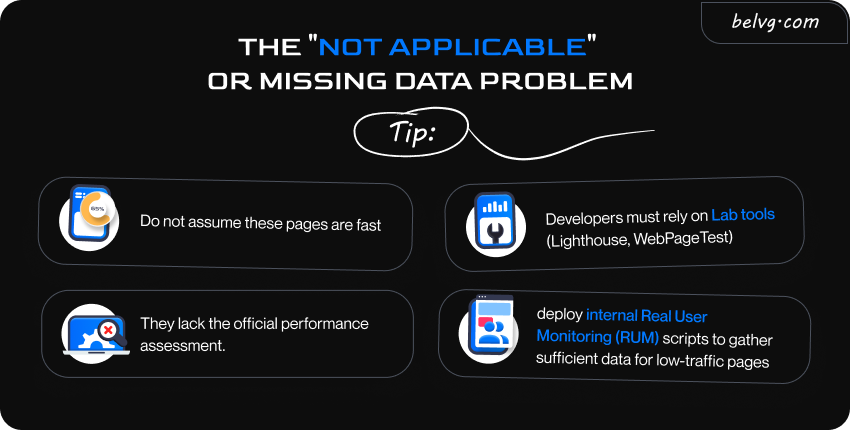
Note: Web pages with low traffic from Chrome users may show missing Field Data in Search Console. Google cannot generate reliable CrUX metrics for these pages. In this case, Search Console may show “Not Applicable” or “Insufficient CrUX data”.
Real User Behavior That Lab Tests Don’t Simulate
Lab tests measure performance during a controlled page load. Real users interact with the page while it is still loading.
Several behaviors affect Core Web Vitals in real conditions:
- Early interactions. Users may scroll, open filters, or tap buttons before JavaScript finishes executing. If the main thread is busy, the browser delays the response, which increases Interaction to Next Paint (INP).
- Dynamic content during scrolling. Product recommendations, ads, or review widgets often load after the initial render. Without reserved space, these elements may cause layout shifts and raise Cumulative Layout Shift (CLS).
- Device limitations. Older smartphones process JavaScript more slowly than the devices used in lab tests.
Because of these factors, a page can score well in Lighthouse but still fail the Core Web Vitals assessment based on real user data.
How to Diagnose a Core Web Vitals Failure
If Google marks a page as “Poor” or “Needs Improvement”, the Field Data (CrUX) indicates a real-world performance issue. Diagnosis requires using Lab tools to interpret Field Data findings.
Identifying the Primary Metric That Causes Failure
When the Core Web Vitals assessment failed, your task is to identify which metric is responsible.
Field Data priority. Start with the GSC Core Web Vitals report or the Field Data section of PageSpeed Insights (PSI). These reports clearly identify which of the three metrics is the primary cause of the failure.
Targeted optimization. An LCP failure usually means server, resources, or rendering bottlenecks. An INP problem points to CPU/Main Thread issues, such as script execution and resource prioritization. A Cumulative Layout Shift issue is tied to late-loading content, such as ads, images without dimensions, and dynamic injection.
The Lab-to-Field Diagnostic Loop
While Field Data tells you what the problem is, Lab Data helps you discover why. Effective diagnosis requires using Lab tools to reliably recreate and analyze the bottleneck reported by the Field data.
The 5-Minute Merchant Health Check
For site owners without the technical background, it’s also possible to spot performance issues. Just use your site like a customer:
- Open your site on a desktop. Check how fast the main images and content appear.
- Click and scroll. Try buttons, menus, and filters. Do they respond instantly?
- Watch for layout shifts. Do elements jump or move while the page loads?
- Open your site on mobile. Test on your phone, not just a simulator. Is it smooth on a slower connection?
- Try key actions. Add a product to the cart or go to checkout. Any delays or friction?
If anything feels slow or unstable, your customers notice it too.

Audit your web pages
Check your ecommerce web performance to prevent any unexpected layout shifts and improve UX
Learn moreCommon Causes of Core Web Vitals Failure
Core Web Vitals failures usually stem from a small number of performance bottlenecks. Most reasons fall into six categories.
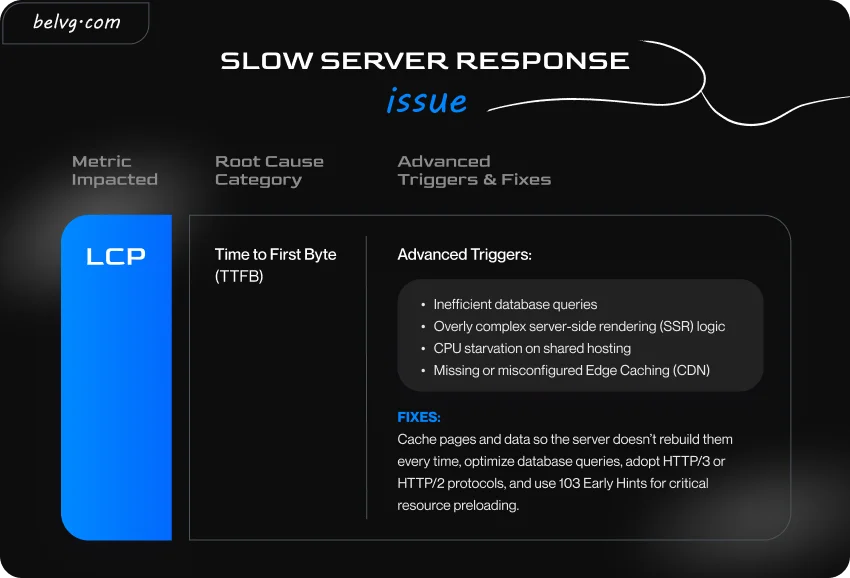
Slow Server Response (TTFB)
The Time to First Byte (TTFB) measures how long it takes the server to start sending data. It is the very first step of loading a page, and it directly affects LCP.
If the server is slow, the browser waits. Nothing on the page can start loading yet — not images, not text, not the main product content. Because of that, the browser delays LCP before it even has a chance to begin.
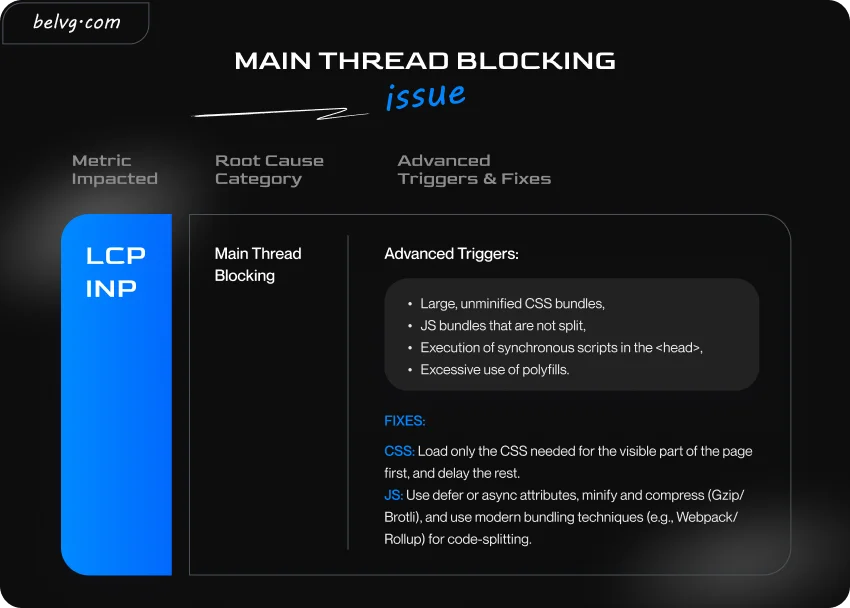
Render-Blocking CSS and JavaScript
When a browser loads a page and encounters JavaScript or CSS that must load first, it has to pause building the page and wait. The page can’t fully appear until those files are downloaded and processed.
This delay slows down how quickly the main content shows up, which hurts LCP. It also blocks the browser from reacting to clicks or taps, which hurts INP.
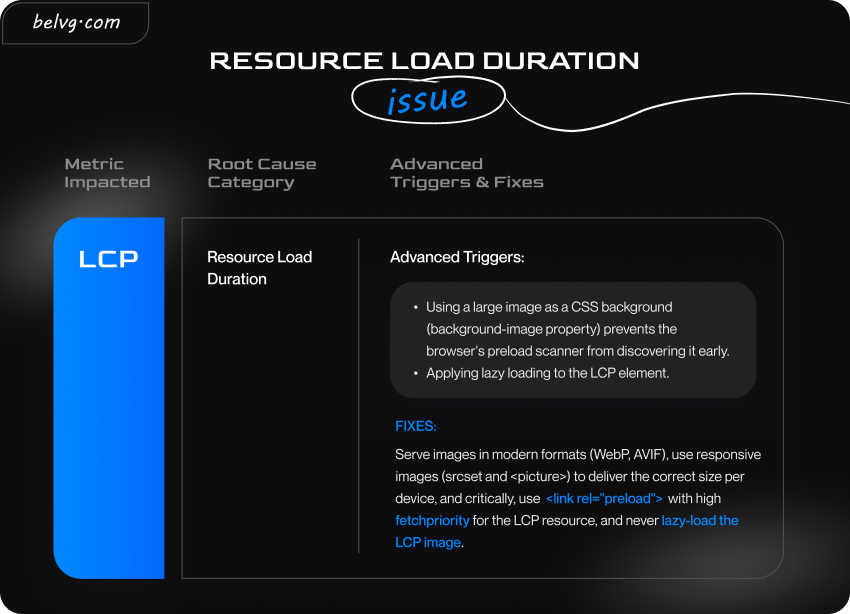
Unoptimized Media and Resource Prioritization
The largest visible element on the page is often a hero image or video poster. Switching from JPEG to WebP can reduce LCP load time, as WebP files are typically 25-34 % smaller than JPEG.
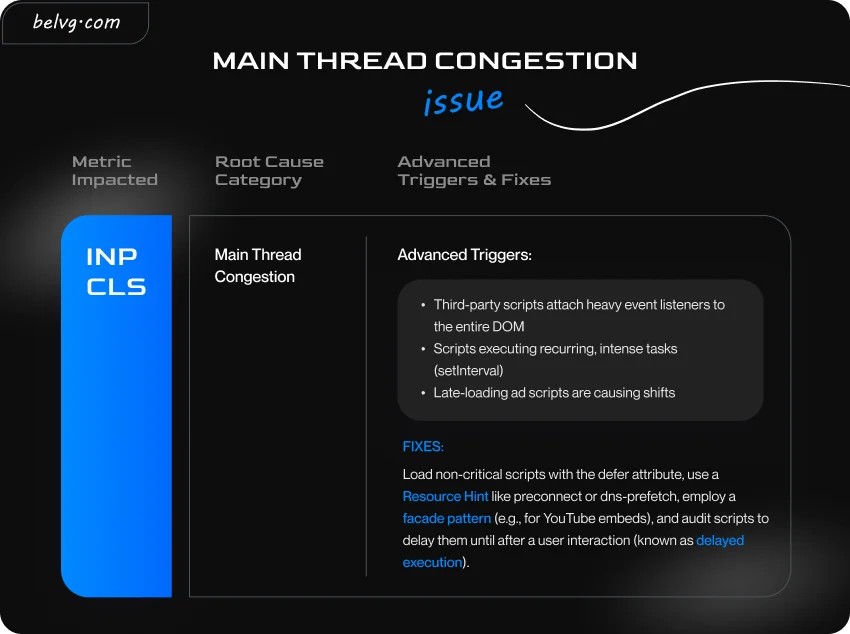
Excessive and Uncontrolled Third-Party Scripts
Third-party scripts, such as analytics, ads, chat widgets, and social embeds, can slow down your site. Even if a script loads asynchronously, its execution may occupy the main thread and delay click or tap responses.
To reduce the impact of external scripts, apply a simple loading policy:
- Only apply scripts that have clear business value, such as analytics, payments, or review widgets.
- Use proper loading attributes:
- async for analytics, ads, and independent scripts.
- defer for scripts that depend on the DOM but should not block HTML parsing.
- Load scripts only when needed, such as for product page reviews or checkout payments.
- Delay non-essential widgets, such as chat tools or social embeds, until user interaction.
Limiting and controlling third-party scripts reduces main-thread work and improves page responsiveness.
Dynamic Elements and Layout Shifts
Сumulative Layout Shift (CLS) measures unexpected movement of elements on the page. Such layout shifts often occur when images, ads, or dynamic elements load late or change size after the page begins to load.

Inefficient Front-End Interactivity
In March 2024, Google officially replaced First Input Delay (FID) with INP to measure CWV. The reason was to show that performance matters beyond just page loading. A slow INP means the site takes too long to respond when users click or tap, often due to inefficient front-end code.
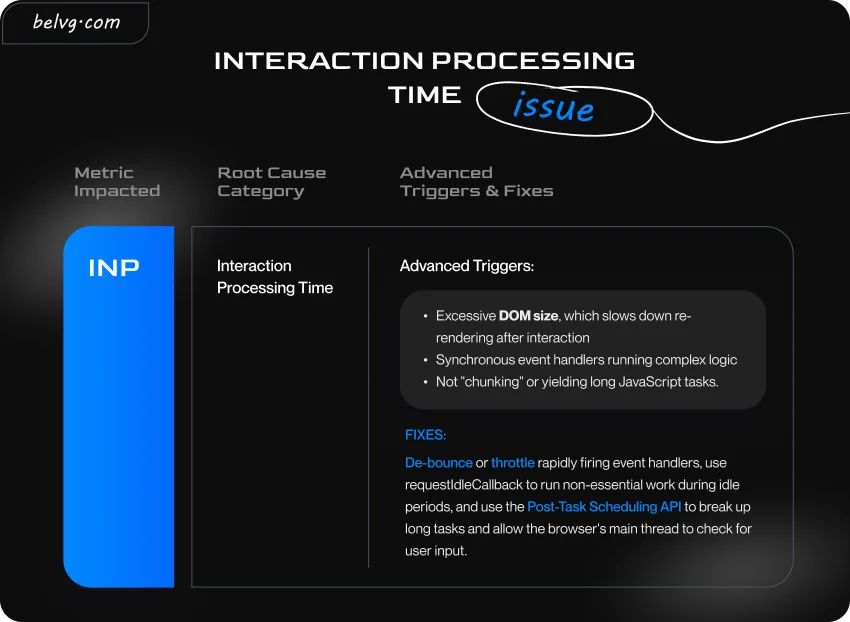
Core Web Vitals failures often trace back to a few predictable bottlenecks. Identifying which of these issues affects a page is the first step toward improving its metrics.
How to Prioritize Fixes
While improving Core Web Vitals, you first need to target the issues that deliver the highest return on investment (ROI).
Identifying Pages with the Highest Business Impact
Before optimizing any code, identify the pages where slow performance directly leads to lost revenue. It helps focus development efforts where the financial impact is greatest.
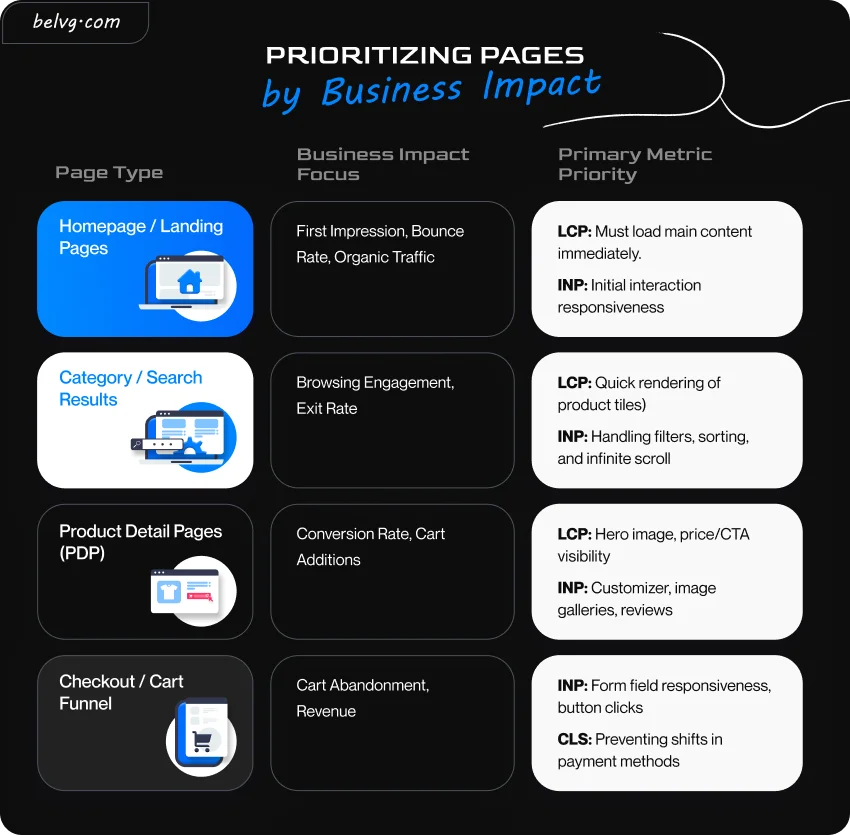
Actionable step: Use Google Analytics to identify high-traffic web pages with low engagement. Pages flagged as “Poor” or “Needs Improvement” in Google Search Console’s Core Web Vitals Report should be your top priority.
Focusing on the Worst-Performing Metric per Page
You already know that a page only passes the Core Web Vitals test if all three metrics are “Good” for the 75th percentile of user visits. Therefore, fixing the lowest-scoring item is the most efficient route to moving the entire page status to “Good”.
| Issue | Goal | What to Fix |
| LCP > 2.5s | Fast load of main content |
|
| NP > 200ms | Efficient response to clicks |
|
| CLS > 0.1 | Stable page while loading |
|
The INP mandate: INP becomes especially noticeable on highly interactive pages such as product pages with filters or galleries. Fixing these delays usually requires deeper investigation than surface-level optimizations.
Quick Wins for Faster Improvements
Before implementing major architectural changes, focus on easy optimizations first. These quick fixes often provide immediate, noticeable improvements that can quickly move a page from “Poor” or “Needs Improvement” to “Good” status.
| Quick Win Category | Core Web Vitals Metric Benefit | Implementation Checklist |
| Image Optimization | LCP, Bandwidth |
Crucially: Remove lazy loading from the LCP element. |
| Caching/Server | LCP (TTFB) |
|
| CSS/JS | LCP, INP |
|
| Layout Stability | CLS |
|
Prioritizing high-impact pages and the worst-performing metrics can deliver big gains with less effort.

Is your store losing revenue due to slow performance?
Book a Core Web Vitals audit with BelVG experts
Get the audit nowSegmentation: Why Product Pages Fail Core Web Vitals Differently Than Blogs
A common mistake in Core Web Vitals optimization is to fix performance across the entire site at once. In reality, different page templates behave very differently.
Google Search Console groups pages into URL groups based on templates. If thousands of product pages share the same layout, a single issue in that template can cause all of them to fail the Core Web Vitals assessment.
For example, a layout shift in the Add-to-Cart button on a product page can make thousands of pages fail simultaneously.
Typical CWV problems by page type are presented in the table.
| Page Type | Typical Failing Metric | Common Cause | Business Impact |
| Product Detail Page (PDP) | INP / LCP | Hero images, variant selectors, review widgets | High – directly affects conversions |
| Category Page (PLP) | CLS | Product grids and filters loading dynamically | Medium – affects product discovery |
| Blog Page | LCP | Large banners or delayed ads | Medium – affects SEO traffic |
| Checkout | INP | Payment scripts and validation | Critical – leads to cart abandonment |
How to analyze segments in Google Search Console:
- Open the Core Web Vitals report.
- Click a “Poor” metric.
- Inspect the sample URL and URL group.
- Identify the template causing the issue.
For ecommerce sites, product pages and checkout flows usually generate most interaction problems. That is why performance work often starts with PDP templates rather than informational pages.
Step-by-Step Fixes for Core Web Vitals Metrics
Fixing Core Web Vitals requires a metric-by-metric approach. Each metric measures a different aspect of page performance.
How to Improve LCP
LCP is an assembly of four time segments: TTFB, Resource Load Delay, Resource Load Time, and Element Render Delay. Efficient optimization should focus on the slowest segment first.
It’s also an important ranking factor. Slow pages may struggle to compete in search results.
| Issue | How to fix it |
| TTFB |
|
| Resource Load Delay |
|
| Element Render Delay |
|
| Resource Load Time |
|
According to Deloitte, a 0.1-second speed improvement can increase retail conversions by 8%.
Case Study: Microservices and Magento update for SOURCE-Werbeartikel
One of the main issues of our client was longer loading times, which led to low user engagement. We focused on the slowest pages and worst-performing metrics during a Magento update.
Results:
- Site speed improved 3×
- The number of users increased by 33%
Targeted fixes helped improve performance data and user activity.
How to Improve INP
High INP is usually a sign of a blocked main thread caused by JavaScript, a critical aspect of Core Web Vitals.
| Issue | How to fix it |
| Input delay |
|
| Heavy processing |
|
| Slow event handling |
|
| Slow UI updates |
|
How to Improve CLS
CLS focuses on allocating the space needed for each page element before it loads.
| Issue | How to fix it |
| Media elements |
|
| Dynamic content |
|
| Web fonts |
|
| Animations |
|
CLS focuses on allocating the space needed for each page element before it loads. This in-depth, metric-specific approach serves to achieve “Good” Core Web Vitals scores.
The “Silent” Performance Booster: Optimizing for bfcache
Many guides overlook one of the powerful tools for a fast “Pass” on the Core Web Vitals assessment: the Back/Forward Cache (bfcache).
The bfcache is an in-memory cache that stores a complete snapshot of a page (including the JavaScript state) when a user navigates away. When the user clicks the “Back” or “Forward” button, the page is restored instantly without a single network request.
If your site is eligible for bfcache, your Field Data (CrUX) can see a significant surge in “Good” scores.
How to Test Your bfcache Eligibility
You don’t have to guess. Chrome DevTools has a built-in “bfcache” tester:
- Open Chrome DevTools (F12).
- Go to the Application tab.
- Select Back-forward Cache from the left-hand menu.
- Click Run Test.
Expert recommendation: In eCommerce, shoppers constantly move back and forth between the Category (PLP) and Product (PDP) pages. Ensuring these templates are bfcache-eligible is the fastest way to move your CrUX 75th percentile into the green.
Platform-Specific Optimization for Ecommerce
Different ecommerce platforms face unique Core Web Vitals challenges. Platform-specific bottlenecks affect user experiences and business metrics.
Magento: LCP Issue
Heavy use of RequireJS can block the main thread, which delays the rendering of key page content on product detail pages.
Fixes:
- Implement a high-performance frontend, such as Hyvä, or use advanced JavaScript bundling.
- Optimize Varnish cache TTL settings to serve pre-rendered HTML quickly and reduce server response time (TTFB).
Shopify: CLS Caused by App-Injected Elements
Asynchronous loading of apps, such as “Frequently Bought Together” widgets, can push content down after the page renders, causing layout shifts.
Fixes:
- Reserve space for dynamically injected elements using CSS to prevent the “Add to Cart” button and other key elements from shifting.
- Check if all dynamic elements have defined dimensions and use font-display strategies to maintain visual stability.
WordPress/WooCommerce: INP Bottleneck
Excessive JavaScript loading from plugins on every page can block the main thread. It leads to slower user interactions and increases INP.
Fixes:
- Use plugins such as Asset CleanUp to de-queue scripts on pages where they are not needed.
- Review and remove unused plugins to reduce unnecessary JavaScript execution and improve responsiveness during interactions.
Each platform has its own performance bottlenecks, so improving Core Web Vitals often requires platform-specific fixes in addition to general optimization practices.
Core Web Vitals matter for every ecommerce store, no matter which platform you use.
They influence several key areas of your business:
- Faster and more stable pages are more likely to rank higher in Google search results.
- A responsive site keeps users engaged and encourages them to browse more products.
- Even small delays can reduce conversions and increase cart abandonment.
- Higher search ranking allows you to spend less on ads.
- When products are similar, customers tend to choose the site that feels faster and smoother.

Ready to see which fixes will move your revenue?
BelVG offers audit services to improve your CWV
Let's startHow to Pass Core Web Vitals Assessment Tips
Passing Core Web Vitals rarely depends on a single fix. Most improvements come from removing delays across the entire delivery path, from server response and caching layers to rendering strategy and frontend resource loading.
To make this process manageable, it’s better to use a structured plan.
The 28-Day Core Web Vitals Recovery Roadmap
Field Data uses a 28-day rolling window, so your Search Console status won’t update instantly. This plan front-loads fixes and reserves the final week for monitoring improvements.
| Phase | Target | Action |
| Audit and quick wins | Identify bottlenecks |
|
| LCP optimization | Load main content faster |
|
| INP and CLS stability | Fix interactivity and layout shifts |
|
| Development and monitoring | Ensure improvements stick |
|
Pro tip: Start with Product Detail Pages (PDP). Fixing a template moves thousands of URLs from “Failed” to “Passed”.
Disclaimer: This plan illustrates how improvements may be achieved. For implementation, it is best to work with professionals.
Case Study: How BelVG Improved Core Web Vitals
In 2025, BelVG’s own website experienced a decline in Core Web Vitals performance. Google Search Console flagged hundreds of URLs with failing scores.
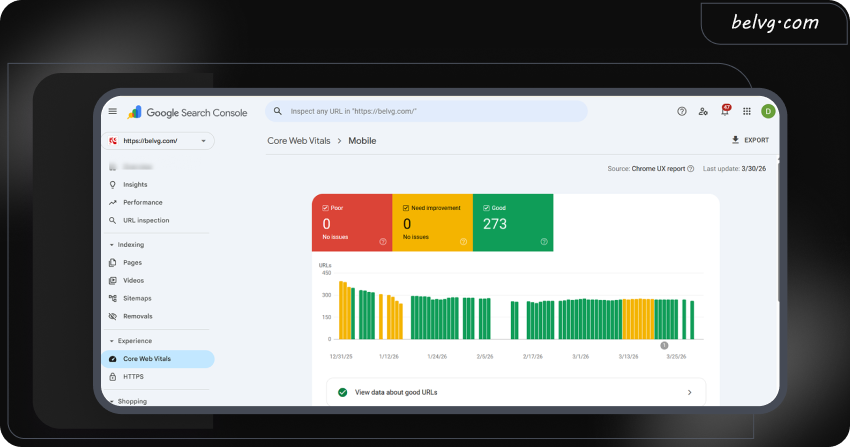
273 mobile URLs on belvg.com were identified with LCP exceeding 2.5 seconds.
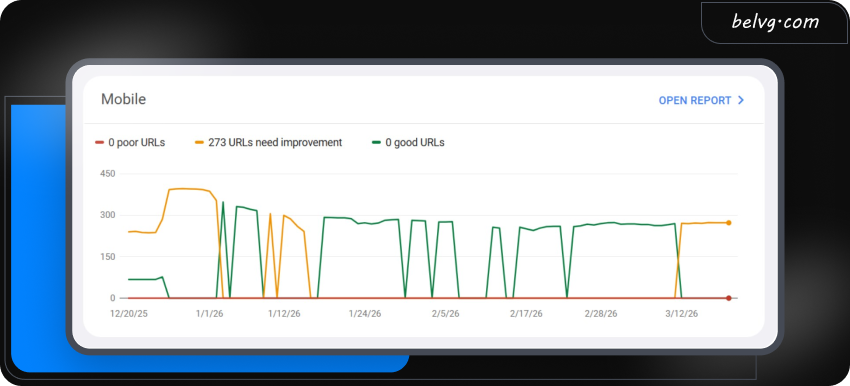
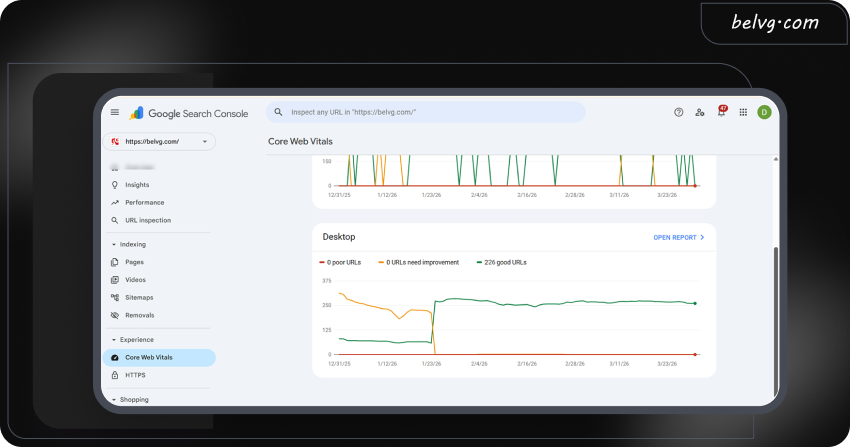
A separate CLS issue affected 226 desktop URLs with a score above 0.1.
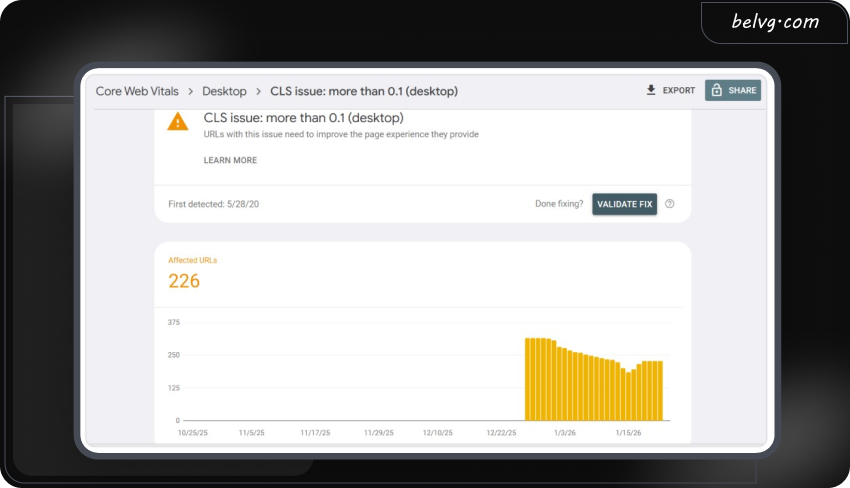
Identifying why Core Web Vitals Scores Dropped
To find the cause, we used PageSpeed Insights, Lighthouse, and Chrome UX Report to identify what slows the site down in the live environment.
The distinction between lab data and field data was important here. Some blog pages passed real-time Lighthouse checks with an LCP of 2.0-2.4s, yet still failed in the field. Field data showed LCP above 2.6s across all pages. A few pages were significantly worse, with LCP of 8.5-9.0s.
Two areas stood out as the main issues:
- Unoptimized CSS slowed down rendering. The browser took too long to process styles before applying them to page elements.
- Fonts created delays early in the load process, blocking visible content from appearing.
Beyond these two issues, third-party scripts added another layer of instability.
Such scripts can introduce instability because you don’t control how they load or change. They may rely on external servers, consume shared resources, and sometimes update without notice.
“Your website’s performance is limited by the speed of its slowest third-party script. Your optimization ends where this external script begins.”
Denis Guriyanov, frontend team lead at BelVG
Changes Made to Optimize for Core Web Vitals
Once the issues were identified, the team worked through fixes in several areas:
- Font loading has been rewritten and switched to script-based to prevent render-blocking behavior.
- Reorganized Critical CSS so each widget block loads only its own styles, reducing the overall CSS size.
- Grouped SVG images into sprites to improve loading efficiency.
- Reviewed and removed third-party scripts where possible.
- Applied lazy loading to images across the site.
- Optimized the mobile version with lighter images and better handling of sliders and banners.
Of all the changes made, font loading had the biggest impact. Before optimization, fonts added around 300 ms of delay to each page load. After switching to script-based loading, it dropped to around 20 ms. A 93% reduction noticeably improved the speed at which content appeared on screen.
Results in Google Search Console
The GSC data from March 30, 2026, shows the following results after optimization:
- Desktop. The site moved from a mix of “Needs improvement” and “Good” URLs to 226 good URLs, 0 poor, 0 needing improvement. The GSC chart shows a clear inflection point around January 23, 2026, the moment the green “Good” line crossed above the yellow “Needs improvement” line and held steady through March.
- Mobile. The LCP issue tracker for mobile shows 0 affected URLs as of the latest data, down from 273 URLs flagged at the start. The mobile CWV report shows no URLs in the “Poor” or “Needs improvement” categories at the time of the last check.
The fixes took about one week to test, identify, and implement. Seeing the final results in Core Web Vitals reports took longer, around 28 days. It is expected that CWV scores are based on real user data collected over a rolling period. Improvements don’t show up immediately.
The Lesson from this Case
Third-party scripts are often the hardest problem to manage, because their behavior is outside the team’s direct control. They can affect performance at any time, even on a site that is otherwise well optimized.
However, there is no universal checklist for good CWV scores. Every site behaves differently depending on its platform, hosting environment, and third-party integrations.
Conclusion and Next Steps
Passing the Core Web Vitals Assessment is a strategic business move. In fact, Google reports that 53 % of users won’t wait more than 3 seconds for a page to load, which means half of mobile visitors leave before slow content loads.
When your pages load fast and respond instantly, users are more likely to stay on the site and complete purchases. Google also considers these signals in its search engine ranking systems.
Across every section, the path is clear:
- Identify your high-value pages.
- Target the weakest metric first to move the entire page status to “Passed”.
- Proceed with small technical wins, such as image optimization, to provide fast gains.
- Continue with caching, CI checks, and RUM tracking to keep performance from slipping again.
Thus, you don’t always need a full rebuild. Focus on site performance scores, mobile friendliness, and enhanced user experience. That’s what separates “good enough” sites from high-performing stores that stay fast through every release and every ad surge. As a bonus, you’ll get improved SEO performance.
Ready to improve your performance metrics and revenue? Use our audit services to prepare your site for the hot season!
Excellent breakdown of Core Web Vitals optimization. Website speed and user experience have become essential factors for both SEO performance and conversion growth.